
IFS Apps 10 Support Is Ending: Migrate to IFS Cloud Without Rebuilding Everything
October 28, 2026 · 5 min read
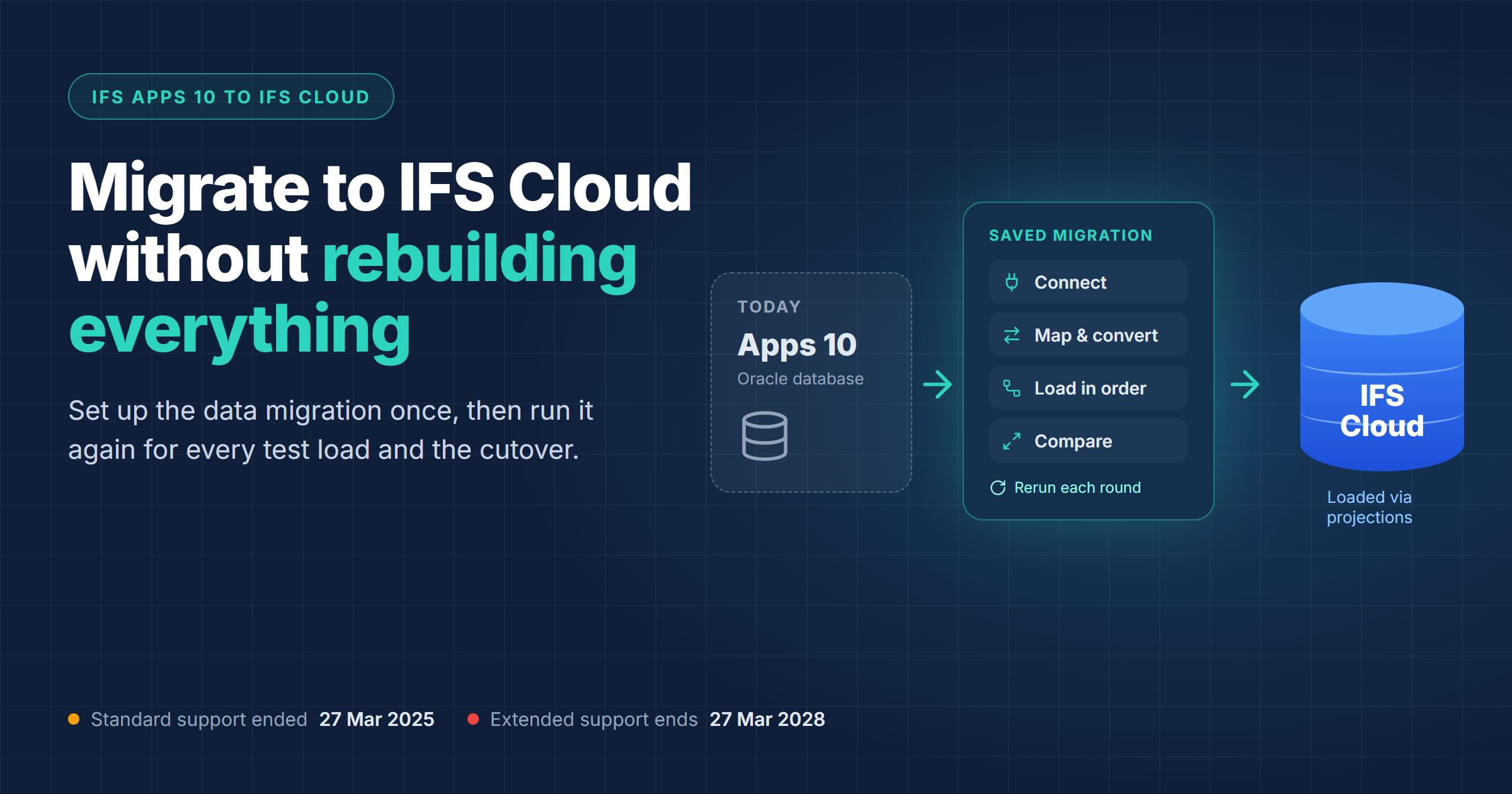
IFS ended standard support for IFS Applications 10 on 27 March 2025. Extended support runs until 27 March 2028, under extra terms and fees. If you're still on Apps 10, that leaves about 17 months, and an IFS Cloud project with a few rounds of test loads will use most of it.
The application side of the move gets most of the attention: new screens, a new way of handling customisations, retraining. The data move gets less, and in our experience it's the part that pushes the go-live date. This post covers that part, and how to run it in the C8 Data Migration Tool so the work you put into the first test load is still paying off at cutover.
What the dates mean for your plan
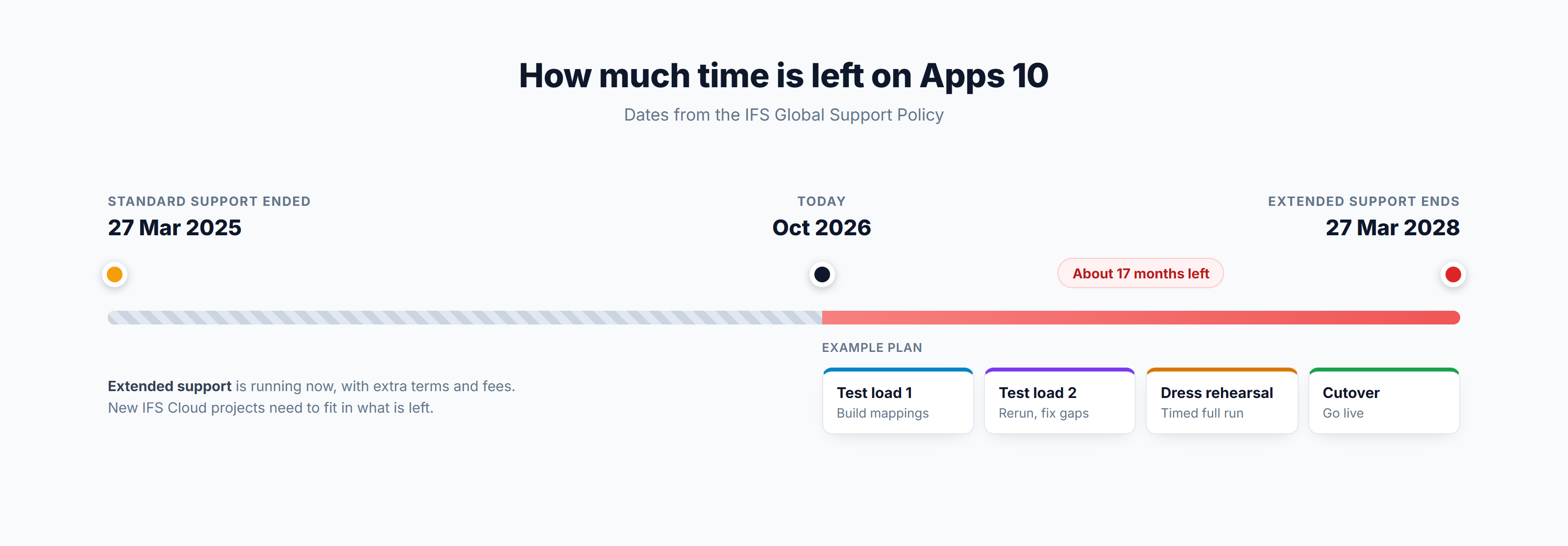
Work backwards from March 2028. Most IFS Cloud projects run at least two test loads, a dress rehearsal and the cutover itself, with time between each one for users to check what landed. Every one of those is a full data migration.
If the first load takes six weeks because every mapping is being worked out for the first time, you need the second one to take days. That only happens if the first load leaves behind something you can run again. Mapping spreadsheets and one-off SQL scripts usually don't. Someone has to rerun them by hand, in the right order, and remember which fixes went in last time.
Upgrade or re-implement, the data still has to move
Some customers upgrade Apps 10 to IFS Cloud and keep their history. Others re-implement, with a fresh IFS Cloud configuration and their master data and open balances brought across. Plenty end up in between, upgrading the core and reloading the parts they want to clean up.
In each case you pull data out of Apps 10 (and often out of other systems that fed it), reshape it for IFS Cloud and load it through IFS Cloud's APIs. The tool covers all three, and saves each step so you can run it again.
Step 1: Connect Apps 10 and IFS Cloud
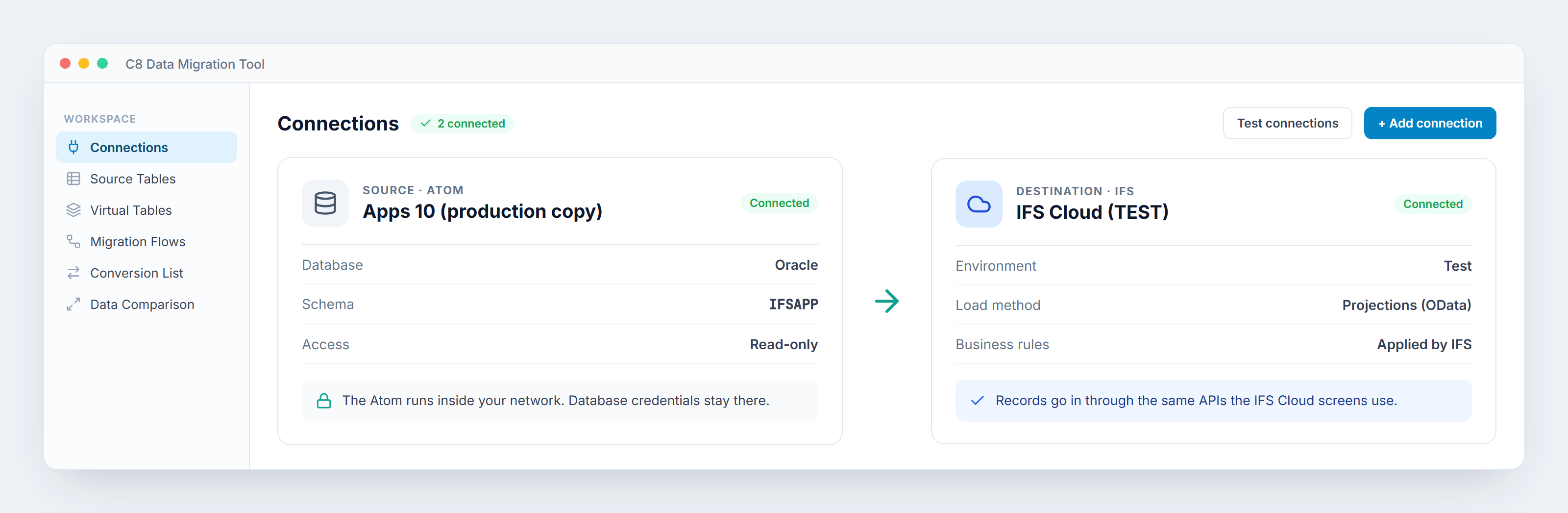
Apps 10 runs on an Oracle database, so the usual way in is the Data Migration Atom. It's a small service you install inside your own network that gives the tool read-only access to the database. Your database credentials stay on your side; the tool only holds a key that lets it ask the Atom for data. The Atom also reads SQL Server, MySQL, PostgreSQL and IBM i (AS400), which helps when some of the data you're moving never lived in IFS. You can also connect an IFS environment directly as a source.
On the other side, you add your IFS Cloud environment as the destination. The tool loads records through IFS Cloud's projections, the same OData APIs its own screens use, so IFS applies its usual business rules to every record. Nobody has to write API calls or load scripts.
Step 2: Map Apps 10 fields to IFS Cloud
Most entities carry over with familiar names, but the fields and the values IFS Cloud accepts don't always match what you have in Apps 10. Mapping is where you sort that out, and you only do it once.
In a Migration Flow, pick the source table and the IFS Cloud entity, then match source columns to IFS fields. The AI Assistant can suggest a first set of matches, which someone who knows the data should check. Where old codes need translating, attach a Conversion List to the field, for example to turn old payment term codes into the ones you've set up in IFS Cloud. Where IFS Cloud needs a value your old data doesn't have, set a default on the destination.
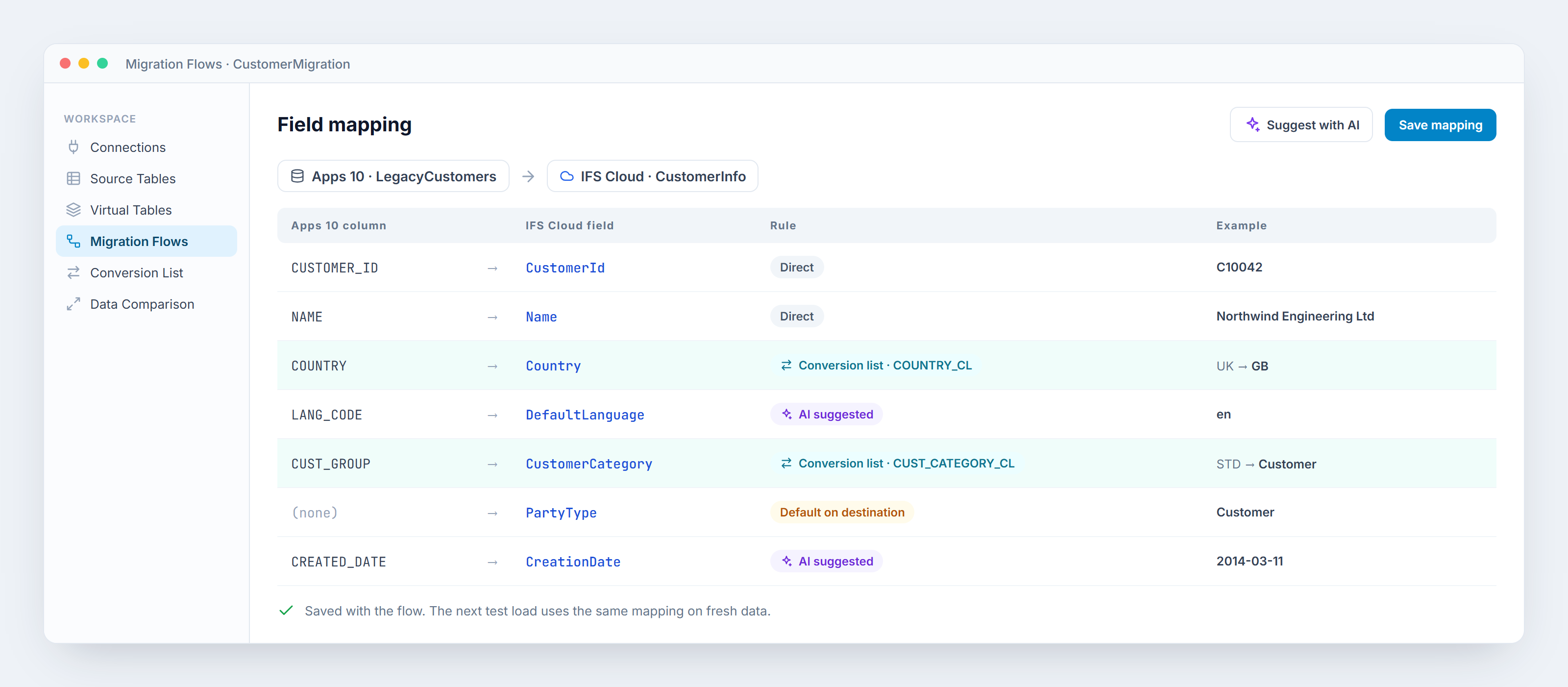
All of this is saved with the flow. On the next test load you download fresh data and run the same mapping again.
Step 3: Load in the right order, and check first
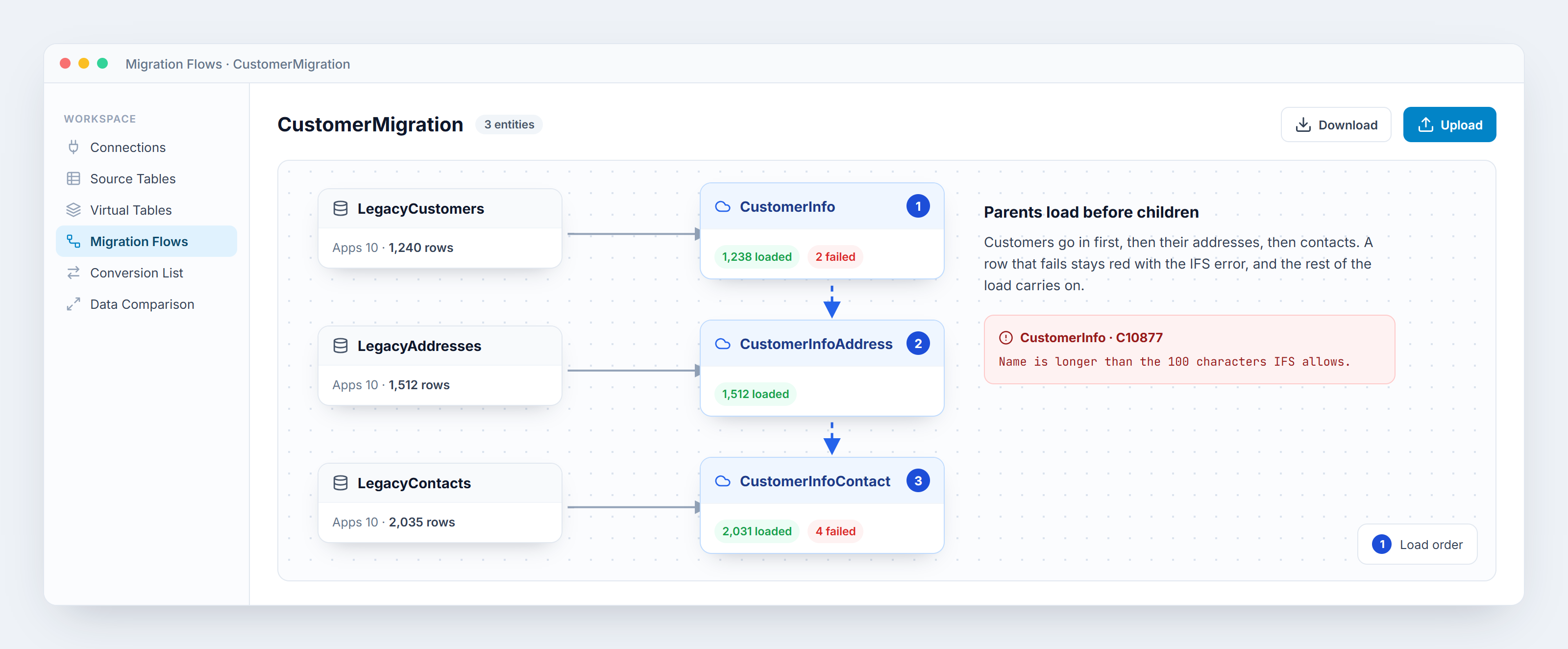
IFS won't accept a customer address before the customer exists. On the Migration Flow canvas you lay the entities out in the order they depend on each other (customer, then addresses, then contacts) and the tool loads them in that order.
Check the data before you load it. A Virtual Table is a saved SQL query over the data you've downloaded, and it's the easiest place to catch unmapped codes, missing mandatory values and duplicate keys before IFS rejects them. Our earlier post, Validate Before You Load, walks through those checks.
When a record still fails, the tool keeps the IFS error on that row and highlights it red, and the rest of the load carries on. Fix the row, select it and upload just that one.
Step 4: Compare what landed
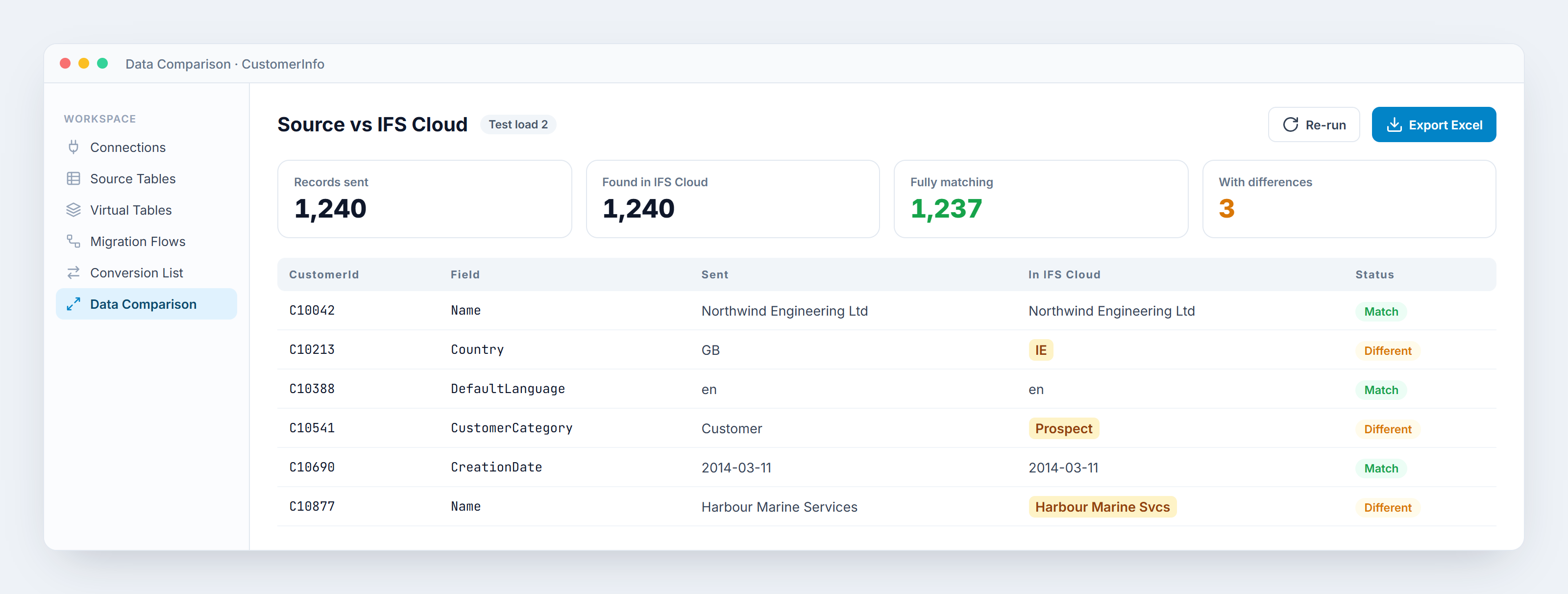
After each load, run a Data Comparison. The tool reads the records back from IFS Cloud and compares them field by field with what you sent. You can export the differences as a highlighted Excel report, which gives the business something concrete to sign off at the end of each round.
Each round starts from the last one
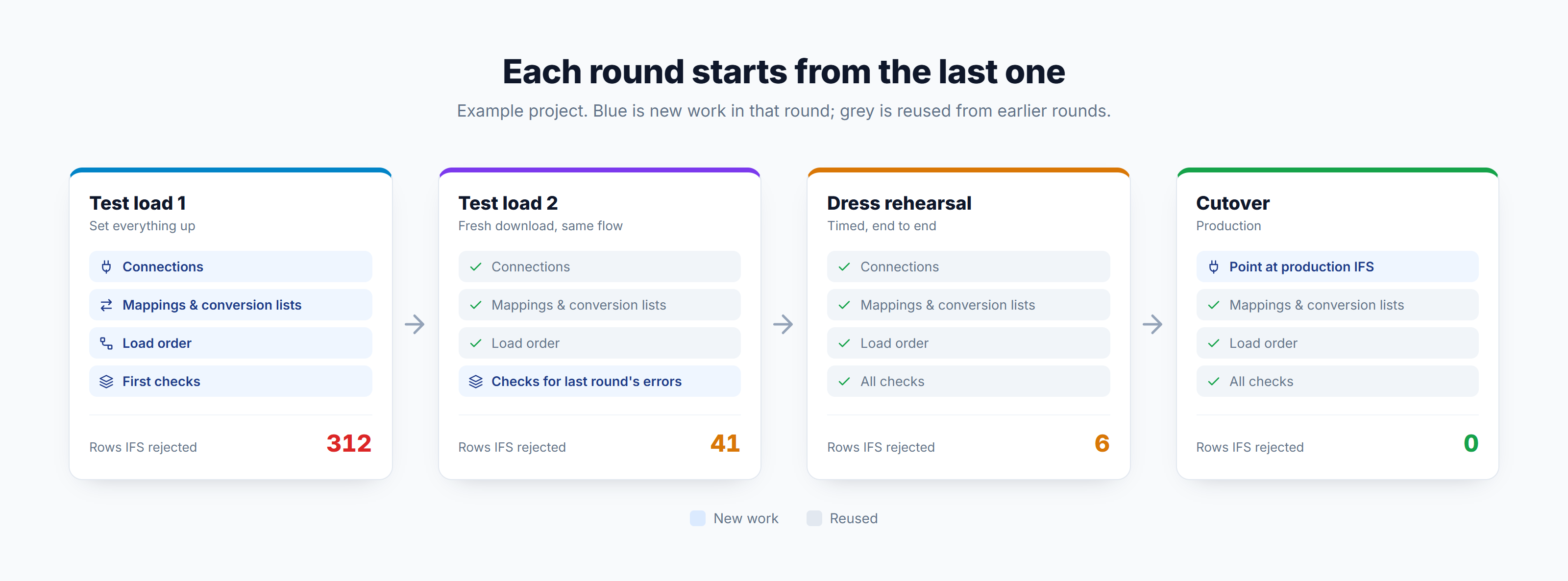
By the second test load you already have the connections, mappings, conversion lists, load order and checks from the first. What's left is whatever changed in Apps 10 since then, plus any new errors IFS Cloud raised. Each of those errors can become another Virtual Table check, so the same problem gets caught before the next load. By the dress rehearsal, most of the work is re-running the flows and reading the comparison report.
Where to start
If you're on Apps 10 today:
- Fix your go-live date and count back the test loads you need before it.
- List the entities you'll migrate and note which ones depend on which.
- Connect Apps 10 and an IFS Cloud test environment, and take one entity all the way through. Customers are a good first choice.
The third step will tell you more about the size of the job than any estimate. You'll see how many fields need mapping, how many codes need a conversion list and what IFS Cloud rejects, while there's still plenty of time before March 2028.