
Load Data into IFS Cloud Without Writing Code
October 30, 2026 · 6 min read
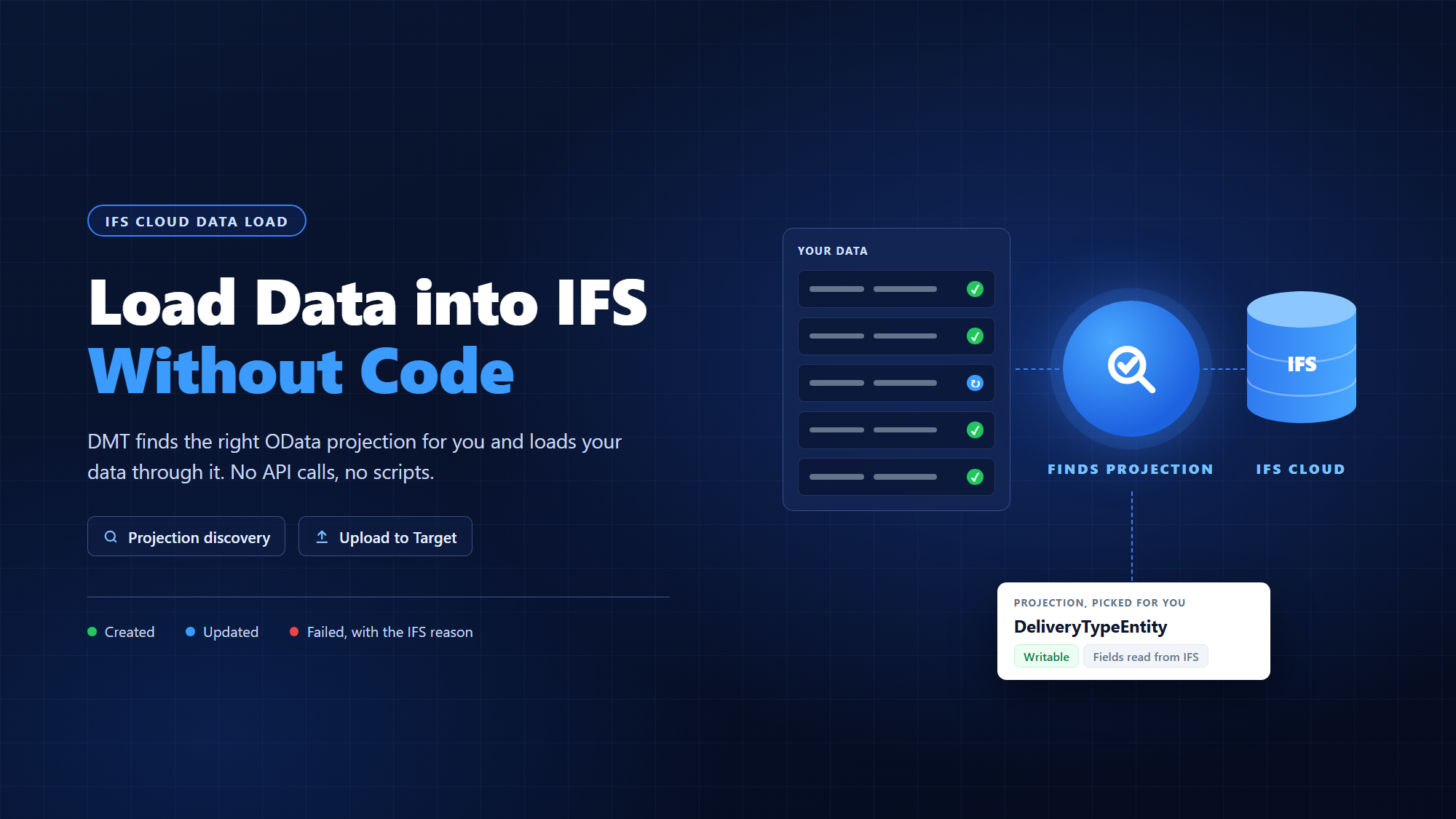
Your data is mapped, cleaned and signed off. Now it has to get into IFS Cloud. Normally that means someone finds the right OData projection, reads its metadata, writes the API calls, handles keys and data types, and works out why IFS rejected row 4,312. DMT does all of that for you. You pick what goes where, and DMT finds the projection and loads the data through it. Nobody writes an API call or a script.
Why loading into IFS Cloud is harder than it looks
IFS Cloud takes data in through OData projections. That sounds simple until you try it:
- One entity, many projections. A single entity can show up in dozens of projections, and many of them are reports that only read data.
- The wrong one fails quietly. A projection can look right and still be read-only, or write through a view that is missing half your fields.
- IFS is strict about values. A date-only field rejects a full date and time. A number sent as text, or a lowercase code in an uppercase-only field, gets the row rejected.
- Re-runs create duplicates. Send the same record twice with a plain insert and you have two problems instead of one.
Each of these usually ends with a developer writing code. With DMT, none of them do.
How DMT finds the right projection
When you connect your source table to an IFS entity, DMT asks IFS itself which projections expose that entity. It then:
- Drops the read-only ones. Report projections are skipped, so only writable projections are offered.
- Ranks what is left. IFS's own default comes first, then the entity's own
...Entityprojection, then a projection named after the entity, then any other writable one. - Picks the best entity set. When a projection has several ways to write the same entity, DMT uses the one that holds the most of your fields.
- Reads the field list from IFS. Field names, data types and keys come straight from the projection's metadata, so they always match the IFS you are loading into.
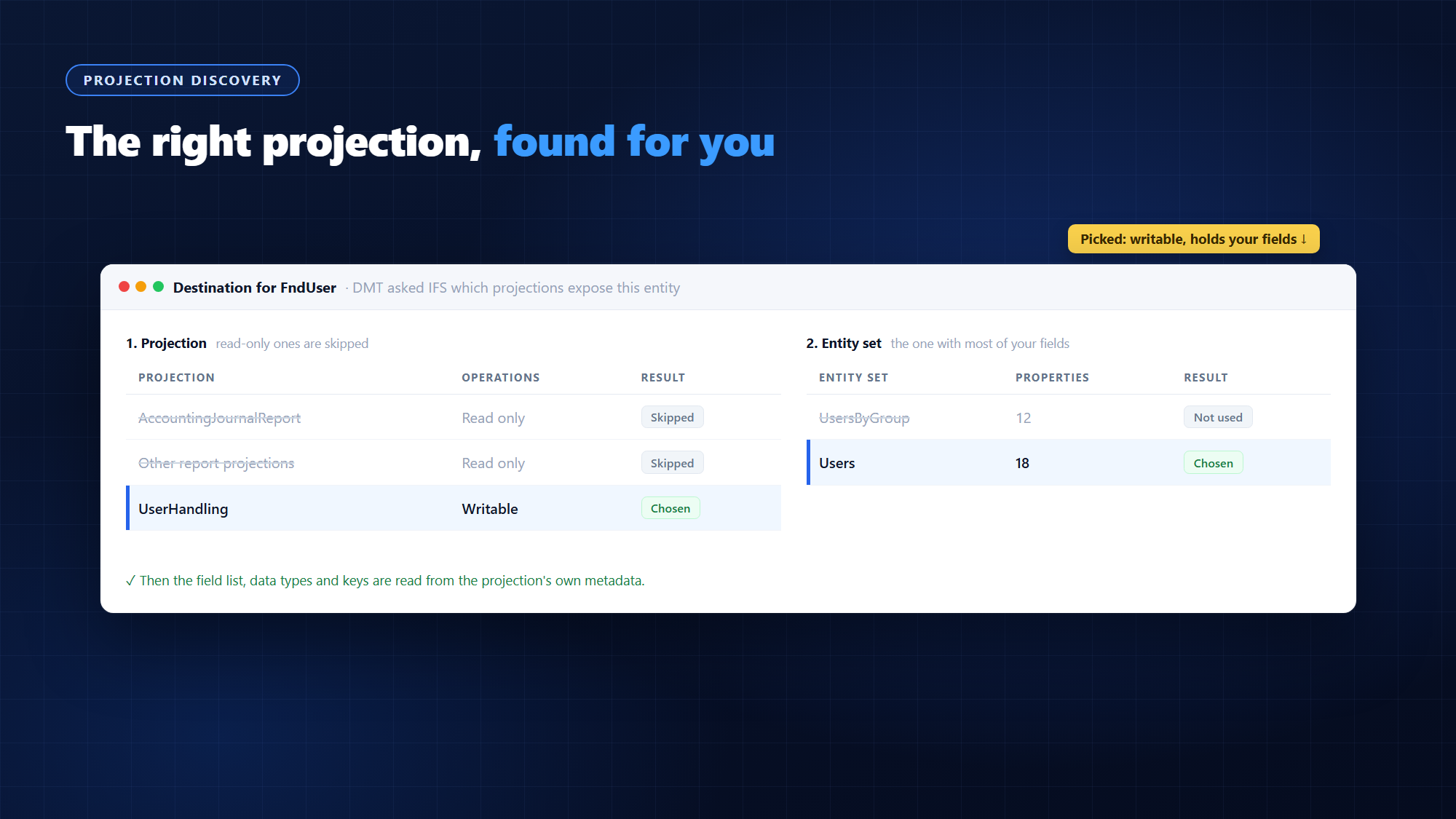
Read-only projections are skipped. The writable one that holds your fields is used.
Step 1: Add your tables to a flow
Open Migration Flows and create a flow, or start from a prebuilt one. In the Tables panel:
- Click Snapshot once to pull the list of tables from IFS. On a new workspace the list stays empty until you do.
- Add your source table and the IFS destination entity to the canvas.
- Click Save & Sync so the flow and its tables are saved.
Step 2: Map your fields
Drag a link from the source table to the IFS entity. The Entity Mapper opens with the Destination Projection already filled in. Then:
- Pair each IFS field with a source column. Keys are marked, so you can see what identifies each record.
- Change the projection if you need to. The list only shows writable projections, and switching re-syncs the fields for you.
- Attach a conversion list where old codes need new values, for example Y/N to true/false.
- Set default values for fields your source doesn't have. Click Default Values on the destination table in the canvas.
Click Save Mappings when you're done. If IFS fields change later, Sync Structure pulls them in again.
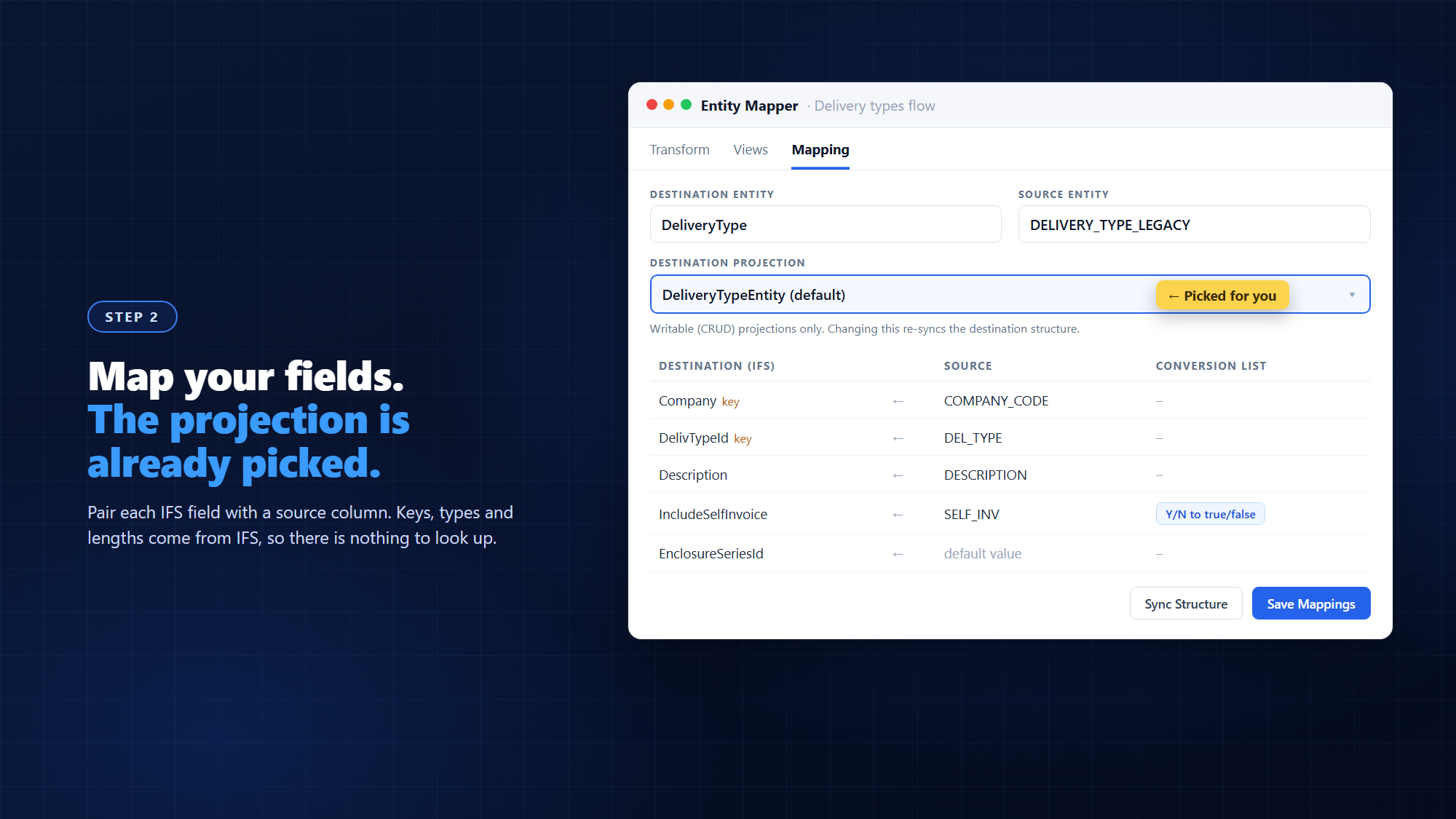
You choose what goes where. DMT already knows how IFS wants it.
Step 3: Upload to IFS
Open the table and click Upload to Target. You can send the records you selected, the ones matching your filter, or all of them.
Before anything is sent, a confirmation shows exactly where the data is going: the IFS connection, its address, the destination entity and the environment. That's your chance to catch "wrong environment" before it happens. Click Upload Now and progress streams live on screen.
Every record gets a clear result:
| Result | Meaning |
|---|---|
| Created | The record was new and is now in IFS |
| Updated | The record was already in IFS, so it was updated instead of duplicated |
| Failed | IFS rejected the record. The log shows IFS's own reason |
Each run is kept in Logs. Open a run to see a timestamped, row-by-row log, filter it to Errors, and use Download Log to share it.
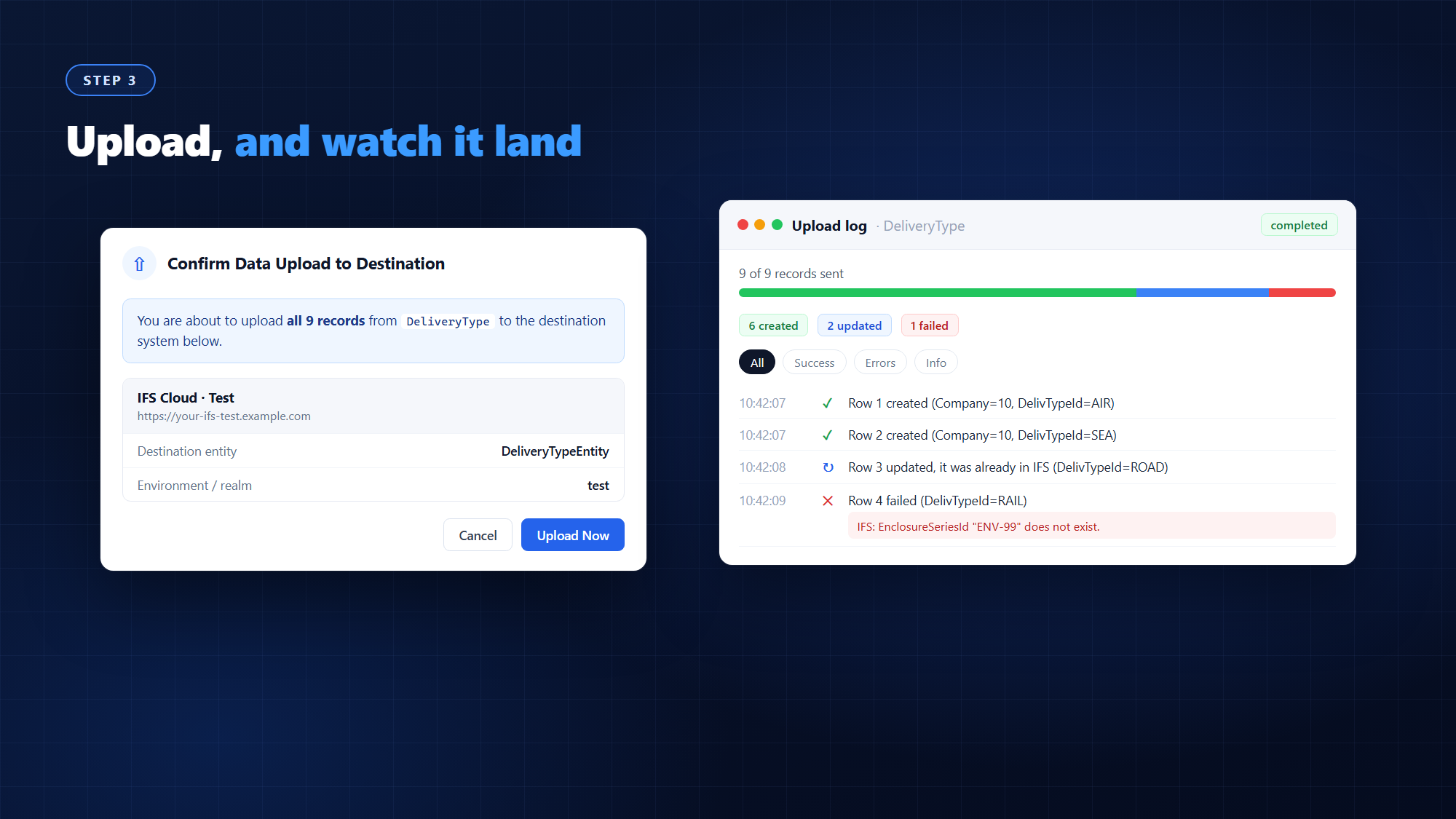
Check the destination, upload, and see every row land.
What DMT does to every row
Before a record is sent, DMT prepares each value to match what the projection expects:
- Dates. A full date and time becomes a plain date for date-only fields.
- Numbers and yes/no values. Text such as "12.50" or "Yes" from a spreadsheet is sent as a real number or true/false.
- Uppercase fields. Values are uppercased where IFS only accepts uppercase codes.
- Field names. Source column names like CUSTOMER_ID are matched to IFS names like CustomerId.
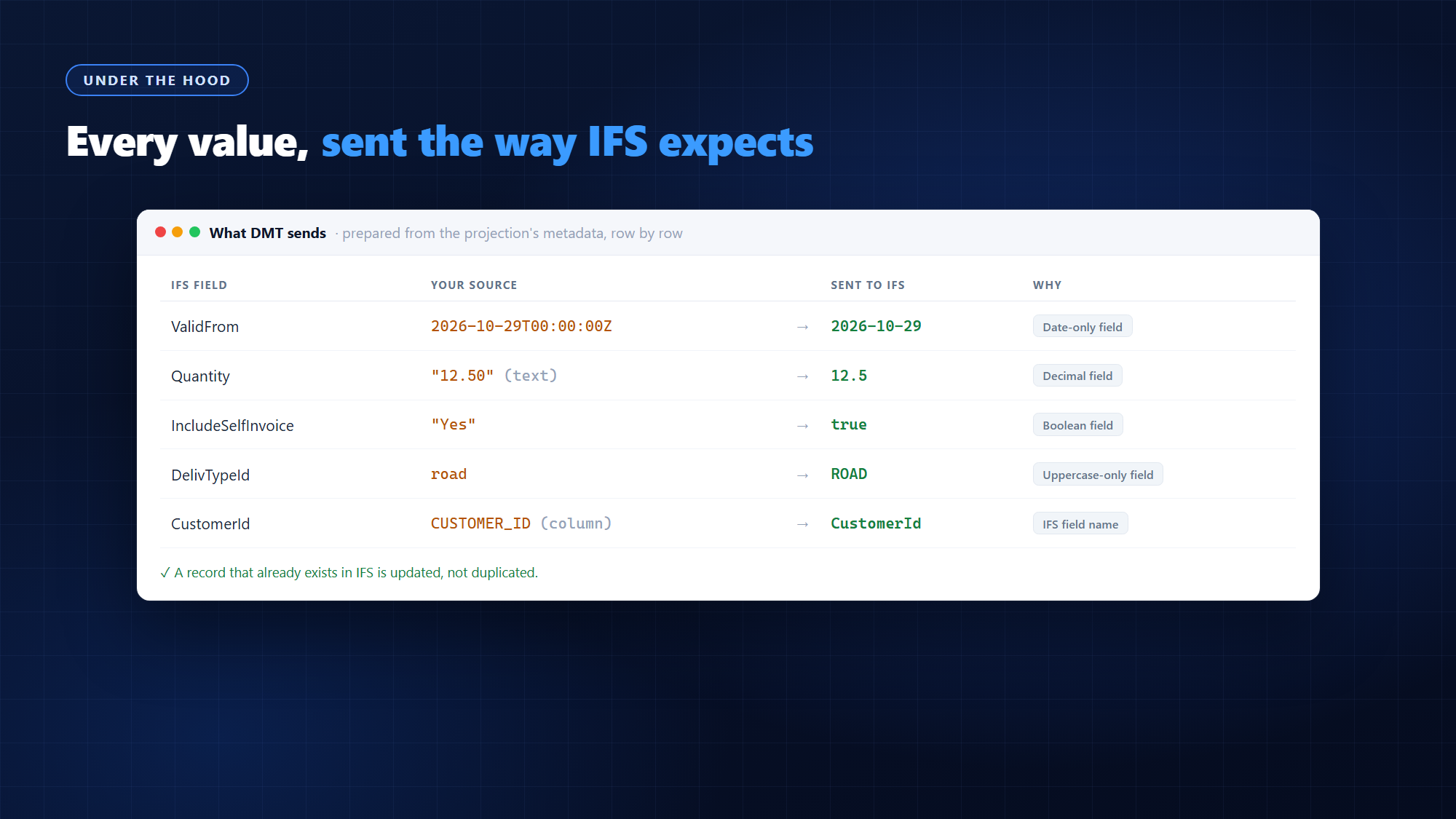
The small details that usually get a row rejected are handled for you.
When a row fails
Failures are normal on a first load, and they are easy to deal with:
- Read the IFS reason. The log shows the exact message IFS returned for that record.
- Fix the cause. Correct the source value, add a conversion list entry, or set a default.
- Upload again. Records that already made it are updated, not duplicated, so re-running is safe.
- Need to back out? Undo upload deletes the records that upload created. Records that were already in IFS before the upload are left alone.
What DMT won't do
It's worth being clear about the limits, so nobody expects the wrong thing:
- It doesn't skip IFS's rules. IFS still checks every record. DMT sends data the way IFS expects, but if IFS says no, the record fails and you see why.
- It doesn't invent values. If IFS needs a field your source doesn't have, set a default value or map a column for it.
- It doesn't go around IFS permissions. The IFS connection you use must be allowed to write to the projection.
- It doesn't clean your data. Wrong values in the source stay wrong. Fix them first with a transform, a conversion list or data cleansing.
Then check what landed
An upload reporting success is a good start, not the sign-off. Run a Data Comparison from the same mapping to check that IFS holds exactly what you loaded, record by record. Our post Reconcile After Go-Live: Compare Source and IFS Data Side by Side walks through it.
Best practices
- Load into a test environment first. Read the confirmation every time, so you always know which IFS you are writing to.
- Keep the default projection unless you have a reason to change it. It's the one DMT ranked best for writing.
- Map real business keys, such as codes and reference numbers, so re-runs update the right record.
- Start with a small batch. Upload a few selected records, check the log, then send the rest.
- Fix failures at the source, then upload again rather than editing records by hand in IFS.
The bottom line
Loading data into IFS Cloud shouldn't need a developer for every entity. DMT finds the right OData projection, prepares every value the way IFS expects, and tells you what happened to each record. Map it, check the destination, upload. No API calls, no scripts.