
Reconcile After Go-Live: Compare Source and IFS Data Side by Side
October 29, 2026 · 7 min read
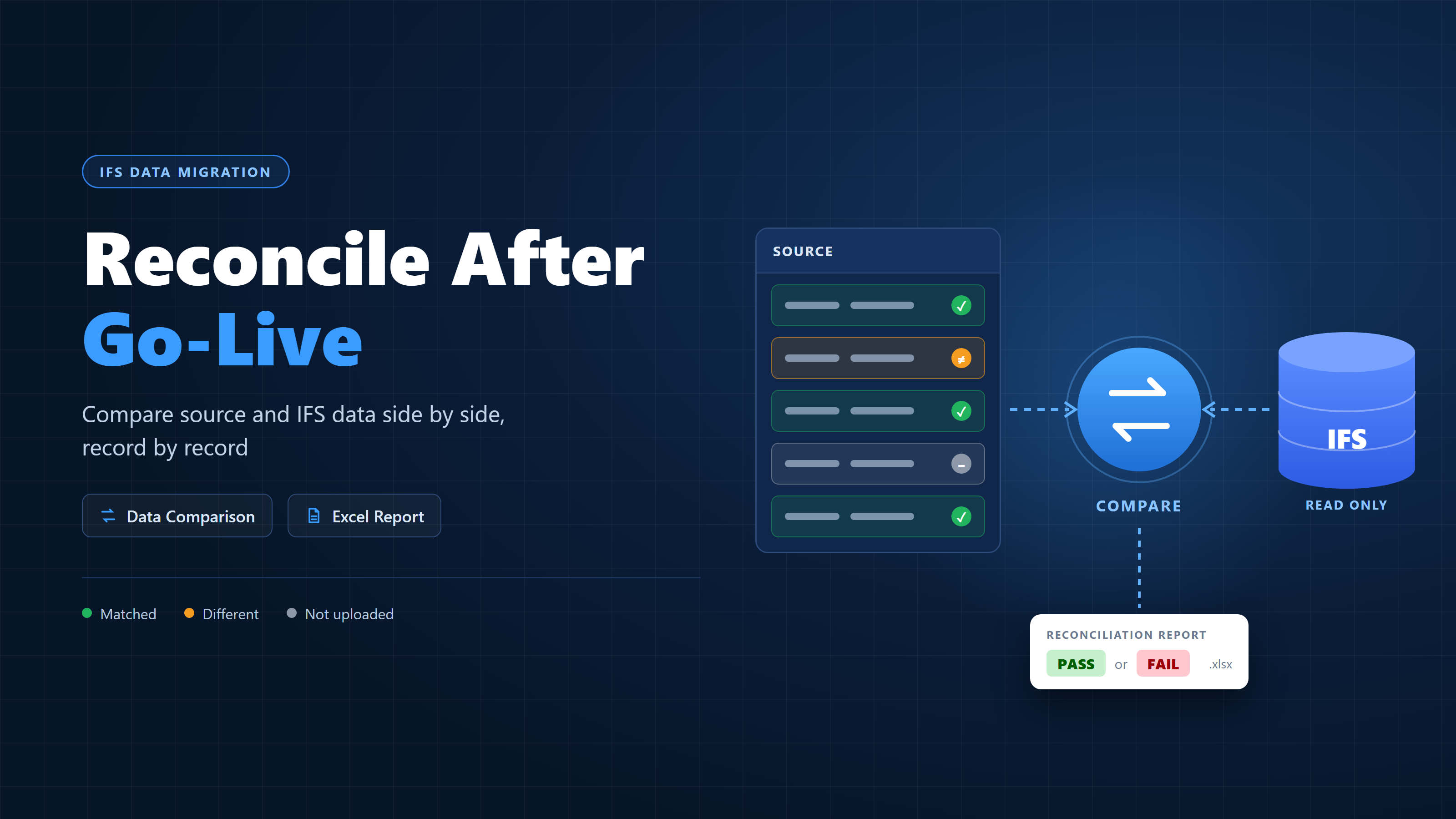
The upload finished and the log says "Completed". But does IFS really hold the data you meant to send?
Data migration reconciliation is the step that answers that question. It proves, record by record, that what reached IFS matches your source. This post shows how to do it in the C8 Data Migration Tool, without exporting spreadsheets or checking rows by hand.
Why reconciliation matters after go-live
A successful upload log doesn't always mean a successful migration. In real projects, things go wrong quietly:
- Some rows fail to upload and are easy to miss in a long log.
- Some rows are never sent, because they were filtered out or the run was stopped.
- A value can arrive different: a conversion wasn't applied, or IFS changed the value.
- IFS may hold extra records that aren't in your source at all.
Checking this by hand means exporting from IFS and the source system and comparing them in Excel. It's slow, error-prone and hard to repeat after every load. Reconciliation should be quick enough to run every time.
How reconciliation works in the tool
The Data Comparison page reads your records back from IFS and compares them with the source dataset you uploaded from. It only reads IFS and never changes your IFS data, so it's safe to run at any time.
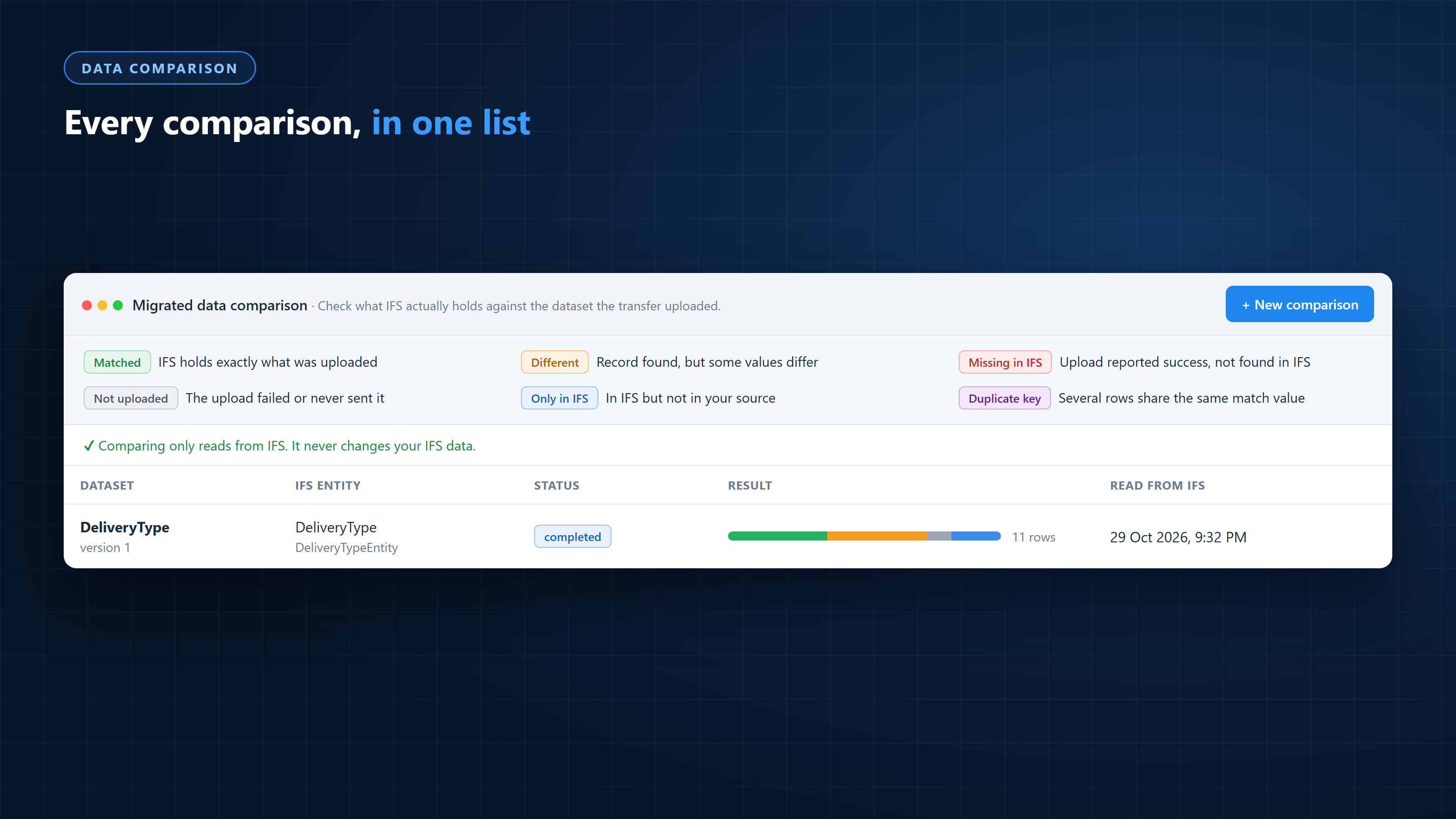
Every comparison you run is kept in the list.
Step 1: Start a new comparison
Click New comparison and choose how to compare:
- From a mapping (recommended): reuses the mapping that uploaded the data, so it compares exactly what the upload sent. Each mapping in the list shows its IFS entity and the key it pairs records on, so you can pick the right one quickly.
- Source and destination: for data that was never mapped. Pick a source table or view and an IFS entity. Columns are paired by name, and you can adjust the pairs in the mapper if names differ.
Step 2: Choose the columns and keys
You'll see every column that will be compared, with the IFS column next to the source column. Untick any column you don't want checked. When you compare from a mapping, the column pairs come straight from that mapping, so you can't accidentally compare the wrong fields.
Under Keys, the mapping's key columns are already ticked, for example Company and DelivTypeId. Keys are how each source row is matched to its IFS record. Change them if your records are identified differently.
You can also tick "Also find rows in IFS that are not in my source" to find records that exist only in IFS. This takes longer.
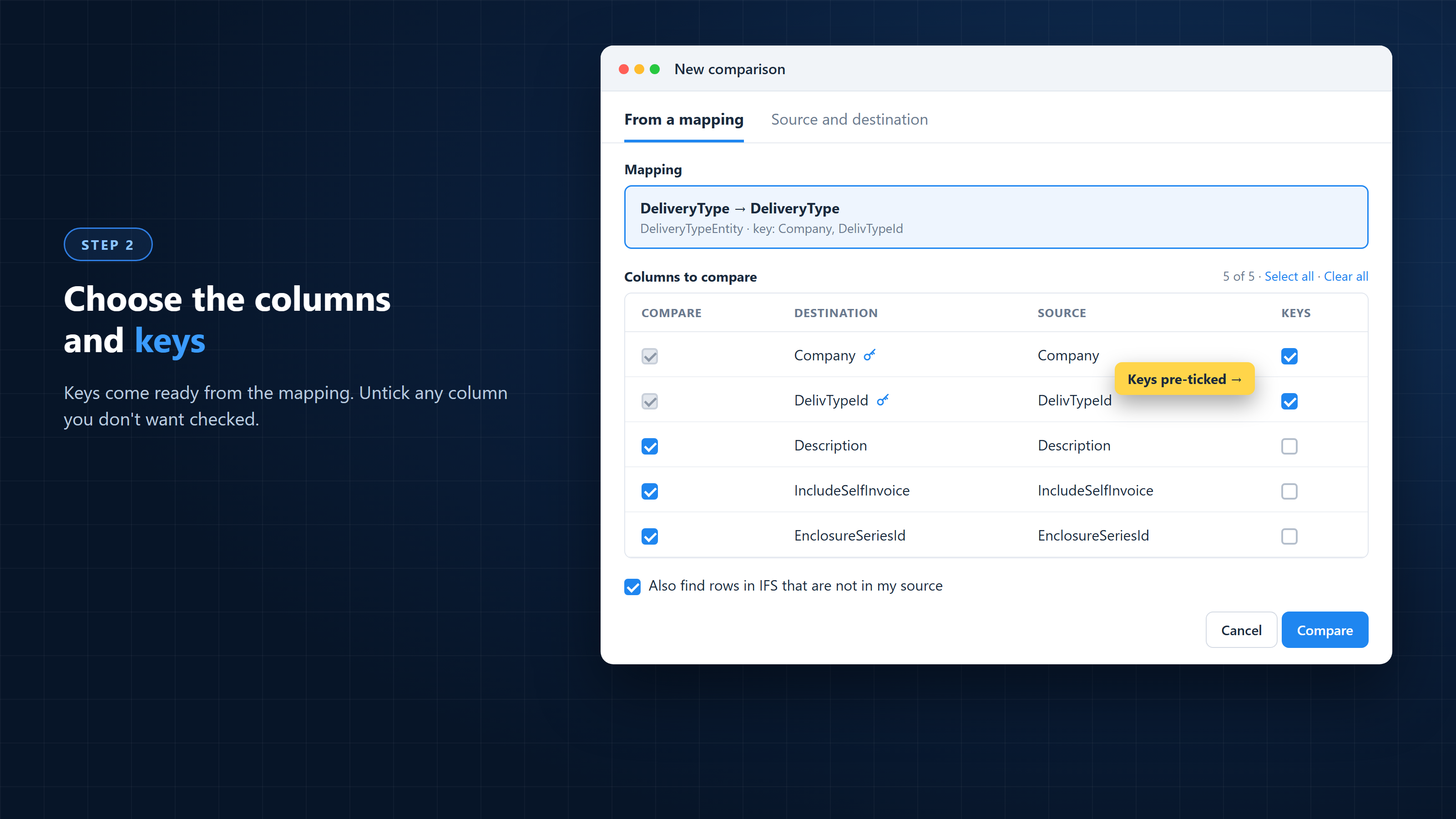
Use real business keys, like a code or reference number, so each source row finds its IFS record.
Step 3: Read the results
Click Compare. A progress bar shows how many records have been compared so far. When it finishes, each record gets a clear result:
| Result | Meaning |
|---|---|
| Matched | IFS holds exactly what was uploaded |
| Different | The record is in IFS, but some values differ |
| Not uploaded | Not in IFS, and the source row has no successful upload on record: the upload failed or it was never sent |
| Missing in IFS | The upload reported success, but the record isn't in IFS |
| Only in IFS | In IFS but not in your source (only when you ticked that option) |
| Duplicate key | Several rows share the same key, so fix the keys first |
Click a result to see just those records.
The comparison is smart about formatting. 10 and 10.00 count as the same, dates in different formats are compared as dates, extra spaces are ignored, and decimals are rounded automatically so tiny rounding noise isn't reported. It also applies the same conversion lists as the upload, so you compare what was actually sent.
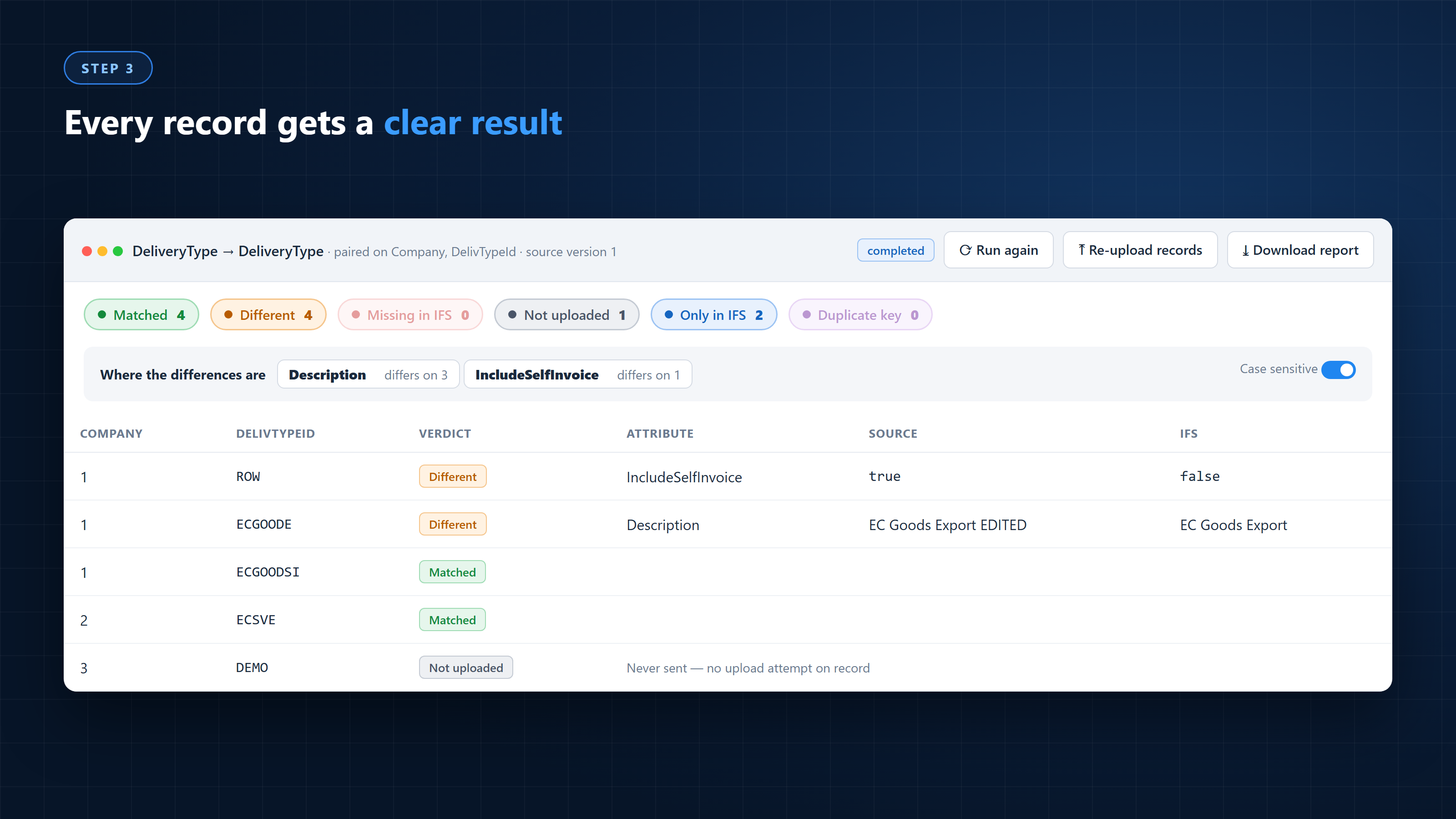
One look tells you how many records matched and where to start fixing.
Step 4: See where the differences are
Under Where the differences are, you see which columns cause the differences, for example "Description differs on 3".
The list shows each differing field with the source value and IFS value side by side. Click a row to open its Row detail:
- For a Different record, you see every differing field. In our test, IncludeSelfInvoice was
truein the source andfalsein IFS. - The Compared as column shows how each value was checked (as a number, date, true/false, enum or text), so you can see why two values did or didn't match.
- If a conversion list changed a value, you also see the original value it came from.
- For a Not uploaded record, the tool tells you whether the upload failed, and shows the IFS error, or whether the record was never sent at all.
Switch off Case sensitive to treat "ABC" and "abc" as the same when letter case doesn't matter.
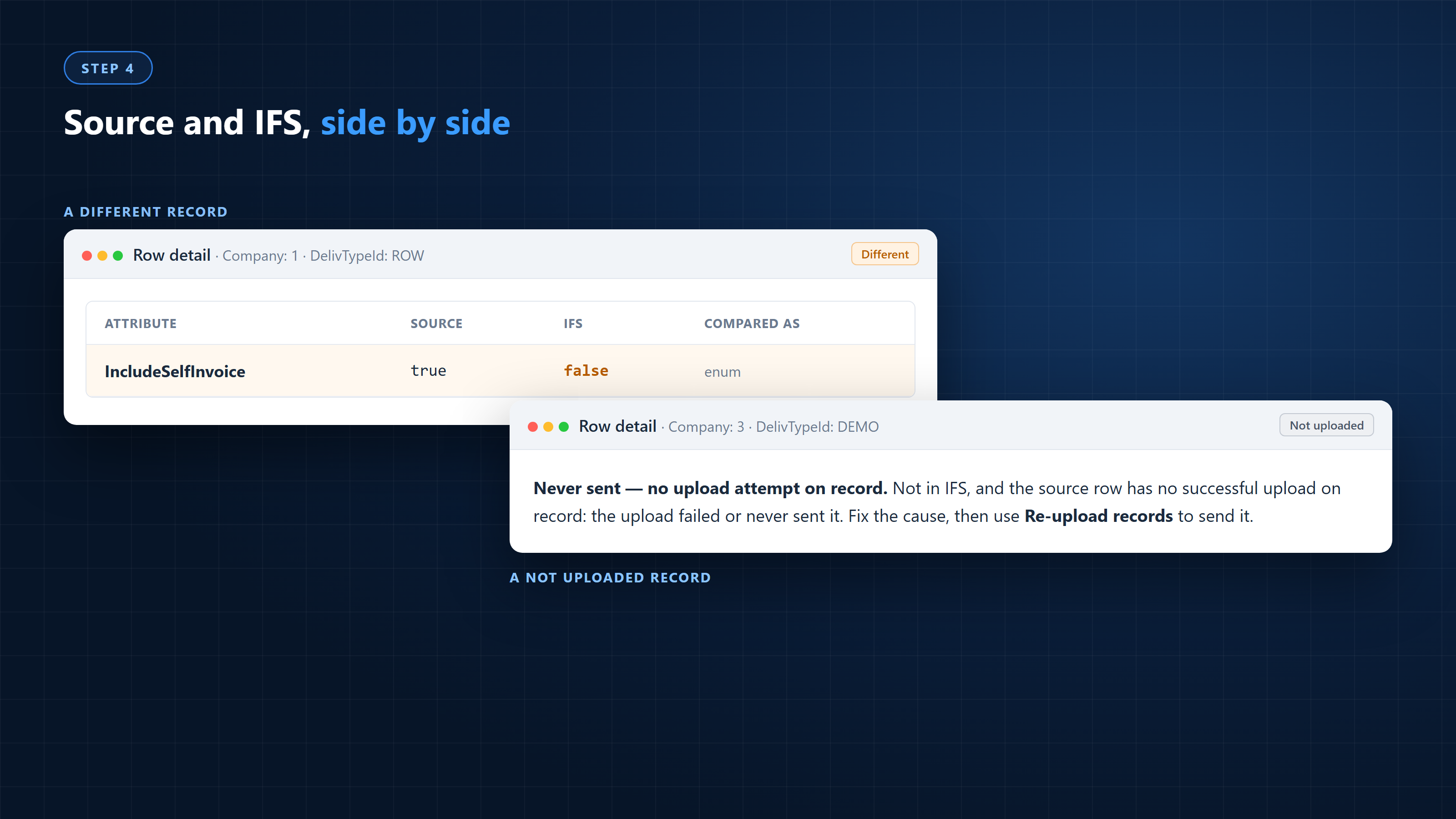
No more guessing which field is wrong. The difference is right there.
What reconciliation won't do
It's worth being clear about the limits, so nobody expects the wrong thing:
- It doesn't fix anything. It only reads IFS. Fixing is up to you (see the next section).
- It rounds decimals automatically. Values are compared to 6 decimal places, so a smaller difference won't show.
- "Only in IFS" needs the tick box. If you didn't ask for it, extra IFS records aren't looked for.
- The report doesn't colour every differing cell. It gives you a clear PASS or FAIL and lists of what differs and what's missing.
Fix and confirm
Reconciliation isn't just a report. It helps you close the gaps:
- Click a result, for example Not uploaded.
- Click Re-upload records. The source table opens, on the same version you compared, filtered to exactly those records. This works for any result, for example Different too.
- Fix the data if needed, then upload them again.
- Go back to the comparison and click Run again to confirm they now match.
Share the result: the reconciliation report
Click Download report to get an Excel file you can share with the business or attach to sign-off:
- Summary: a clear PASS or FAIL, the match rate, counts for each result, which fields differ, and the details of the run (company, table, version, keys and when IFS was read).
- Key totals: when the table has number columns, such as quantities, they're added up on both sides to prove the totals agree.
- Values differ: each differing value, with source and IFS side by side.
- Records not in IFS: each missing record, with the reason, and the upload error when an upload failed.
Each list has filters, so you can narrow it down to one field or record. Records found only in IFS are counted in the Summary; open the comparison in the tool to see them.
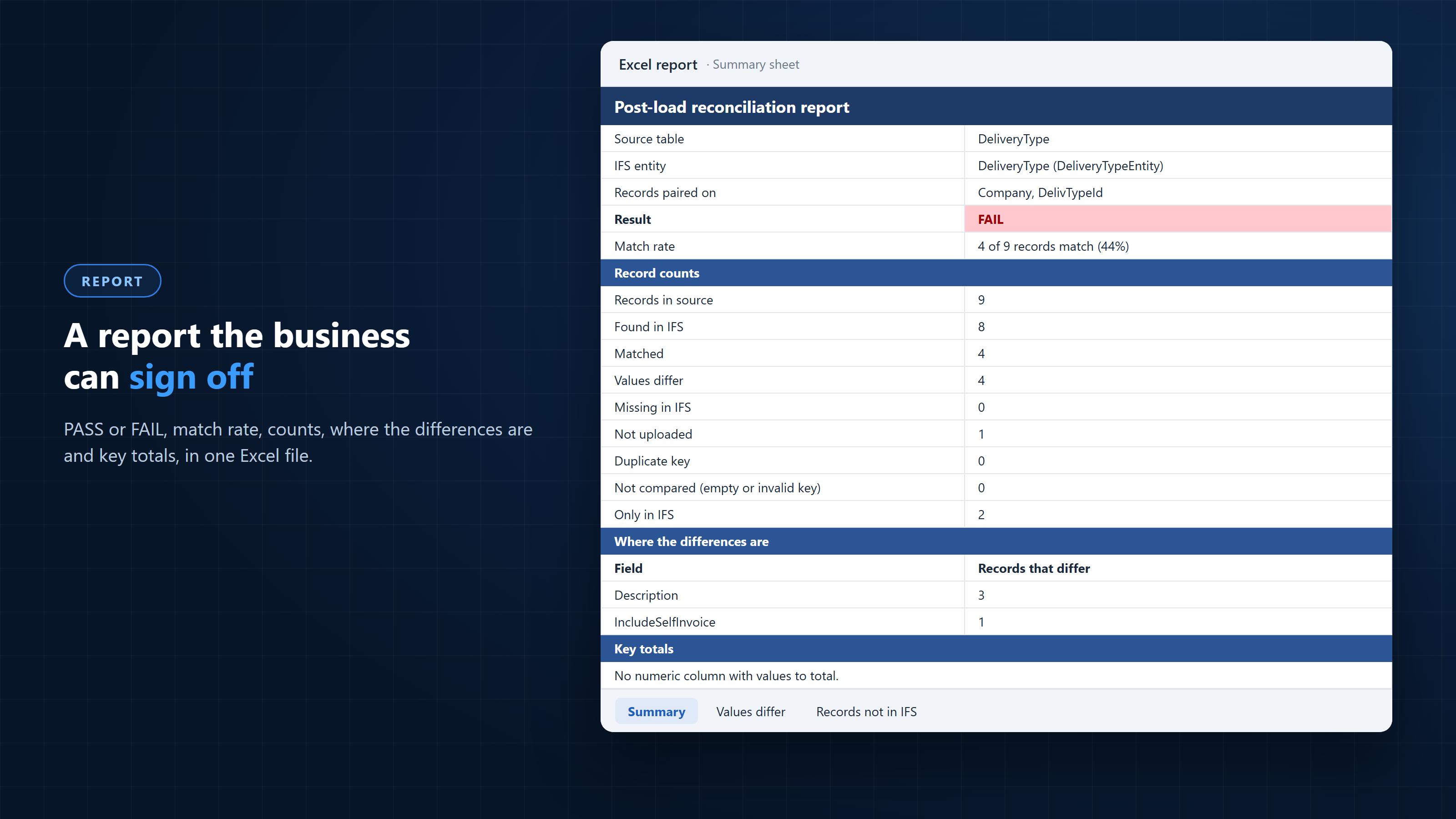
The report is what the business signs off on.
Best practices
- Use "From a mapping" whenever you can. It compares exactly what was uploaded.
- Choose real business keys, such as codes or reference numbers, not IDs that IFS generates.
- Untick columns that IFS fills in itself, so they don't show as false differences.
- Run a comparison after every load, not just at go-live.
- Look into "Only in IFS". Extra records can mean data was created in IFS outside the migration.
- Keep the report as evidence for sign-off and audits.
Conclusion
Go-live isn't the end of a migration. Proving the data is right is. With data migration reconciliation built into the tool, you can compare source and IFS data side by side, see exactly what's different or missing, fix it, and run it again to confirm. The result is a clear PASS or FAIL that you and your stakeholders can trust.