
Validate Before You Load: Catch Bad IFS Data Early with Virtual Tables and Conversion Lists
November 2, 2026 · 9 min read
Most IFS migrations don't fail all at once. They fail one row at a time, often late on a Friday, and often on the load nobody expected to be a problem.
You've mapped the entity and run the upload. Then the log fills with errors like "PayTermId does not exist" or "Value too large for column". Now someone has to find out which 312 of the 40,000 customer records failed, why they failed, and whether fixing them will break anything else.
We've been through this many times. That's why the C8 Data Migration Tool is built around one simple rule: find the bad data before IFS does.
This post shows how to do that using two features:
- Conversion Lists change old values into the values IFS expects.
- Virtual Tables find the rows that will fail, before you upload them.
The problem: legacy data uses different codes
Legacy systems are full of codes that made sense to someone years ago:
| Legacy field | Legacy value | What IFS expects |
|---|---|---|
| Payment terms | N30 | 30 |
| Payment terms | NET 60 | 60 |
| Country | UK | GB |
| Customer status | A / X | Active / Blocked |
| Unit of measure | EA. | pcs |
These values aren't wrong in the old system. They're just wrong for IFS. If you send them as they are, IFS rejects the record. Worse, it may accept the record with a value nobody intended.
So you have two jobs:
- Translate the values that have a known IFS equivalent. Conversion Lists do this.
- Catch the values that don't, before the upload. Virtual Tables do this.
Step 1: Build your Conversion Lists
A Conversion List is a simple two-column lookup: Old Value → New Value. Create one list for each set of codes, such as PAY_TERMS_CL, COUNTRY_CL or CUST_STATUS_CL.
To create one:
- Open Conversion List in the sidebar and click New Conversion List.
- Click Add Value to add pairs one at a time, or click Import to upload them from a spreadsheet. Most teams already have these mappings in Excel, so importing is usually faster.
- Open your Migration Flow, go to the field mapping, and attach the list to the field. You can also attach it from a column's properties on the table page.
When the migration runs, every matching source value is replaced automatically. N30 goes in and 30 comes out.
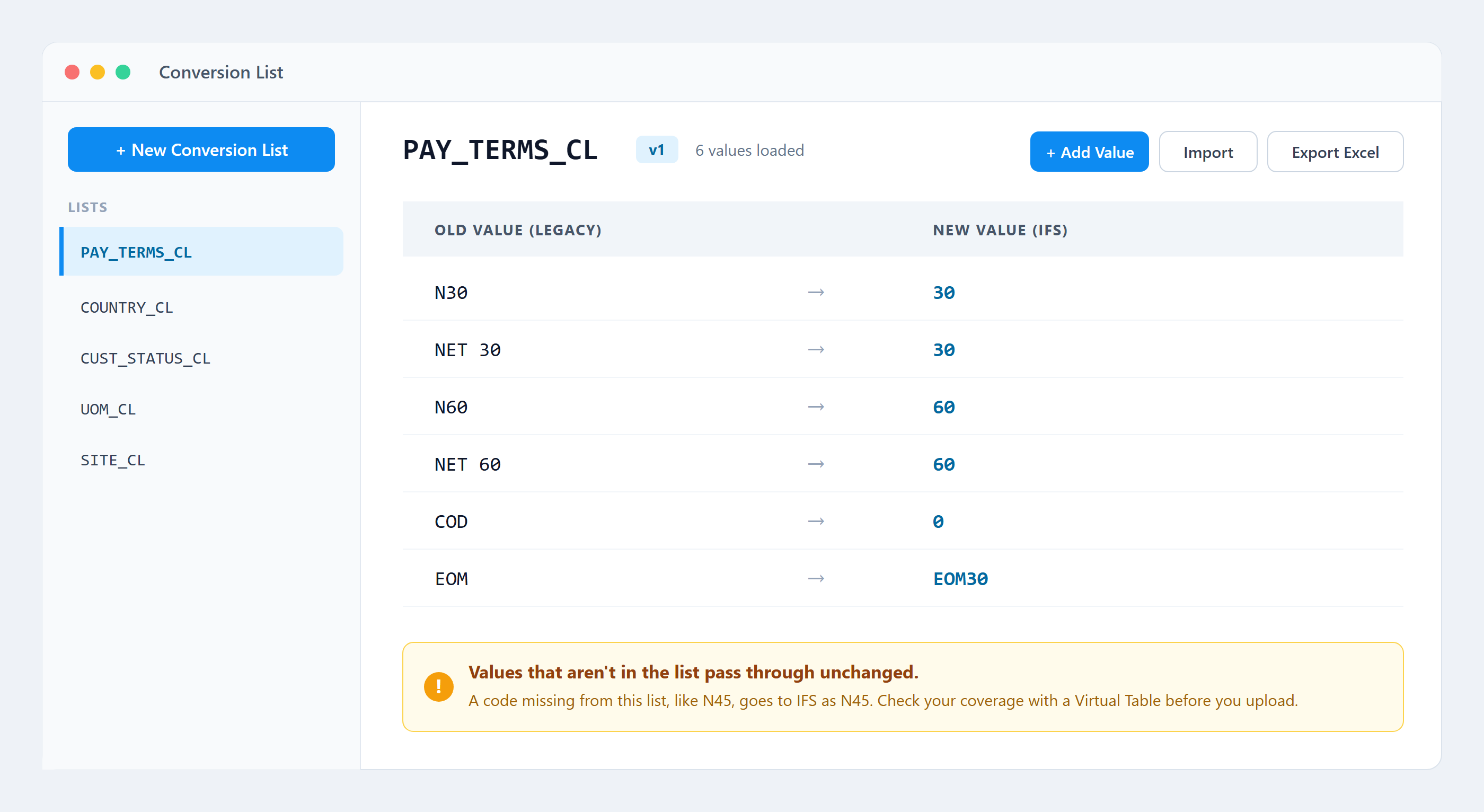
A conversion list for payment terms. Each legacy code maps to the value IFS expects.
Starting from nothing? The Generate tab in the AI Assistant can suggest a first set of old and new values. Treat them as a draft, and ask someone who knows the business to check them.
Watch out: unmapped values are not changed
If a value isn't in the list, it passes through unchanged.
This is intentional, because you don't want the tool to blank out fields it doesn't recognise. But it means one unmapped code, such as an old N45, goes to IFS as N45, and IFS rejects it.
A Conversion List only helps with the values it contains. Step 2 shows you which values are missing.
Step 2: Use Virtual Tables to find what will fail
A Virtual Table is a saved SQL query that runs on the data you've already downloaded into the tool. It doesn't copy any data. It gives you a live view, which makes it ideal for listing the rows that will cause problems.
Go to Virtual Tables → New Virtual Table and start with this question: which values are not covered by my Conversion List?
SELECT c."CUSTOMER_ID",
       c."NAME",
       c."PAY_TERM_ID"
FROM   "LEGACY_CUSTOMERS" c
LEFT JOIN "PAY_TERMS_CL" cl
       ON cl."old_value" = c."PAY_TERM_ID"
WHERE  c."imt_version" = '0'
  AND  cl."old_value" IS NULL
Click Preview and check the result:
- No rows: your list covers every value in the data.
- Some rows: each row is a problem you've caught before the upload, and you can see exactly which codes are missing.
In our example, the query found four customers using three missing codes: N45, 45 DAYS and NET45.
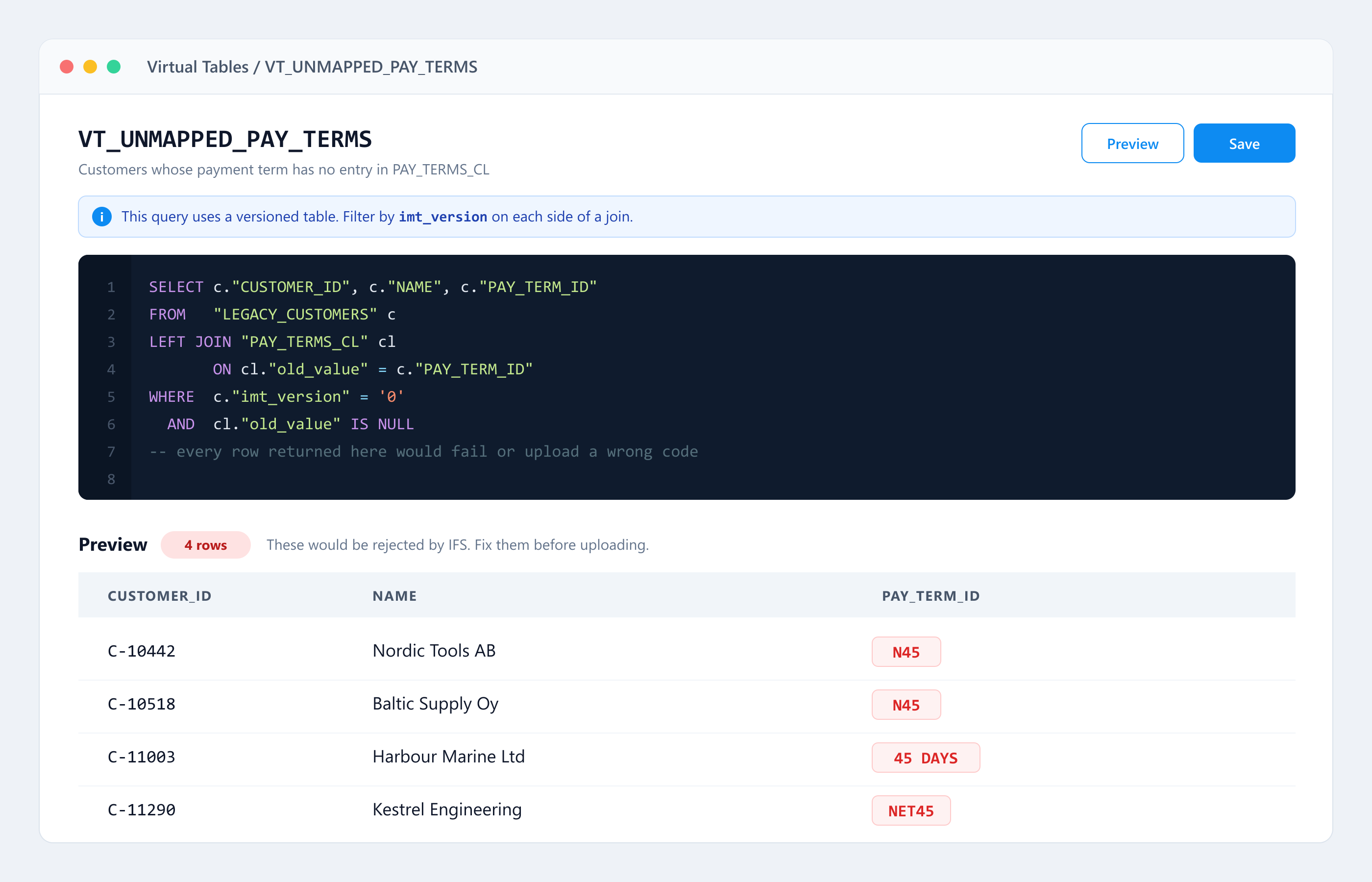
Four customers use payment terms the Conversion List doesn't cover.
Tip: if a table is versioned, always filter on imt_version, including on both sides of a join. The page shows a reminder banner for this. If you forget, you'll check every version at once.
Other useful checks
The same approach works for most of the checks we run on real projects.
Missing mandatory values
SELECT "CUSTOMER_ID", "NAME", "COUNTRY"
FROM   "LEGACY_CUSTOMERS"
WHERE  "imt_version" = '0'
  AND  ("COUNTRY" IS NULL OR TRIM("COUNTRY") = '')
Values longer than the IFS field allows
SELECT "CUSTOMER_ID", "NAME", LENGTH("NAME") AS name_length
FROM   "LEGACY_CUSTOMERS"
WHERE  "imt_version" = '0'
  AND  LENGTH("NAME") > 100
Duplicate keys
SELECT "CUSTOMER_ID", COUNT(*) AS copies
FROM   "LEGACY_CUSTOMERS"
WHERE  "imt_version" = '0'
GROUP  BY "CUSTOMER_ID"
HAVING COUNT(*) > 1
Child records whose parent doesn't exist
SELECT o."ORDER_NO", o."CUSTOMER_ID"
FROM   "LEGACY_ORDERS" o
LEFT JOIN "LEGACY_CUSTOMERS" c
       ON c."CUSTOMER_ID" = o."CUSTOMER_ID"
      AND c."imt_version" = '0'
WHERE  o."imt_version" = '0'
  AND  c."CUSTOMER_ID" IS NULL
Turn your checks into a checklist
Save each check as its own Virtual Table, with a clear name such as VT_UNMAPPED_PAY_TERMS or VT_MISSING_COUNTRY. Together, they become your pre-load checklist. Open each one before every upload. If they're all empty, you're ready to go.
- Not comfortable with SQL? Describe the check to the AI Assistant on the Virtual Tables page, for example "show customers whose payment term isn't in PAY_TERMS_CL". It will draft the query for you. Preview the result before you rely on it.
- Need the business to review a check? Use Convert to Custom View. It becomes a normal table they can browse, filter and export without touching SQL.
Step 3: Fix the cause of each problem
Once you know what's wrong, there are usually three ways to fix it.
| The problem | The fix |
|---|---|
| The mapping is missing | Add it to the Conversion List |
| The data is wrong | Edit it in the source table |
| The record shouldn't be migrated | Exclude it |
The mapping is missing. Add the pair to the Conversion List (N45 → 45) and run the Virtual Table again. The rows disappear from the result. This is the best kind of fix, because it also fixes every future load.
The data is wrong. Open the source table, click Edit, change the cells, and click Save Changes. Every change is recorded in the record's History, so you can always see who changed a value. For bigger fixes, create a new version of the table first. Your original download stays untouched, and you can switch back if the cleanup goes wrong.
The record shouldn't be migrated. This could be test data, a closed account or junk from an old integration. Select the rows and click Exclude. If related tables are in the same flow, use Propagate Exclusions so you don't leave orphaned order lines behind. You can restore excluded rows later if needed.
Then go back to your Virtual Tables and repeat until they're all empty.
Step 4: If a row still fails, it turns red
No validation catches everything. IFS has its own business rules, and some only apply when you actually try to write the record.
When IFS rejects a row, the tool saves the error on that record and highlights the row in red. You don't have to search through a 40,000-line log, because the problems are easy to see in the table.
One failed row doesn't stop the upload either. The good records go through, and the failed ones wait for you.
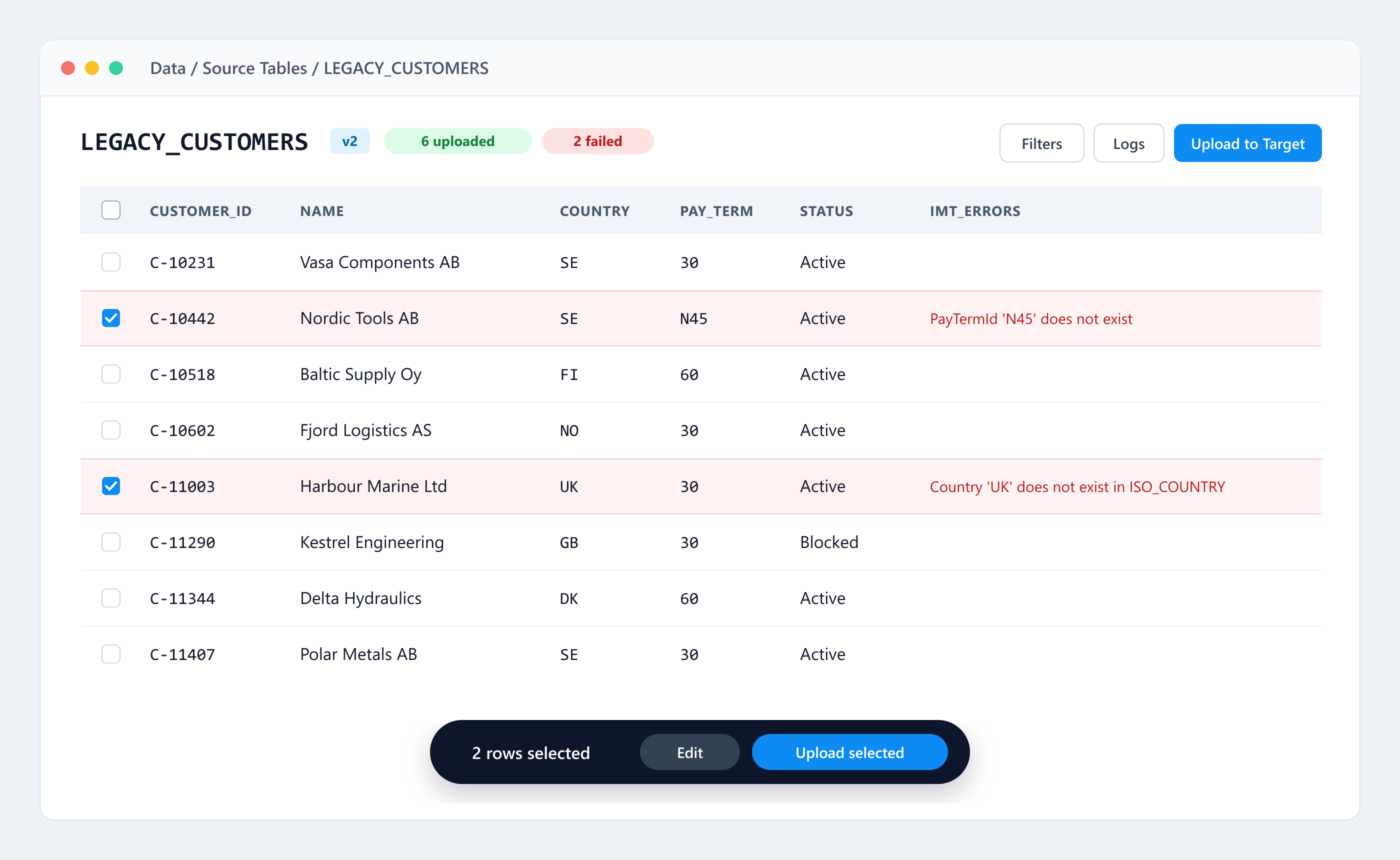
Six rows were uploaded. The two that IFS rejected are red, and each one shows the error that came back.
To deal with a red row:
- Open the row and read the IFS error.
- Decide what kind of problem it is: a missing mapping, wrong data, or a record that shouldn't migrate.
- Fix it with a Conversion List entry, an inline edit or an exclusion.
- Turn the error into a new check. If IFS rejected it once, write a Virtual Table that catches it next time.
- Select the fixed rows and upload only those.
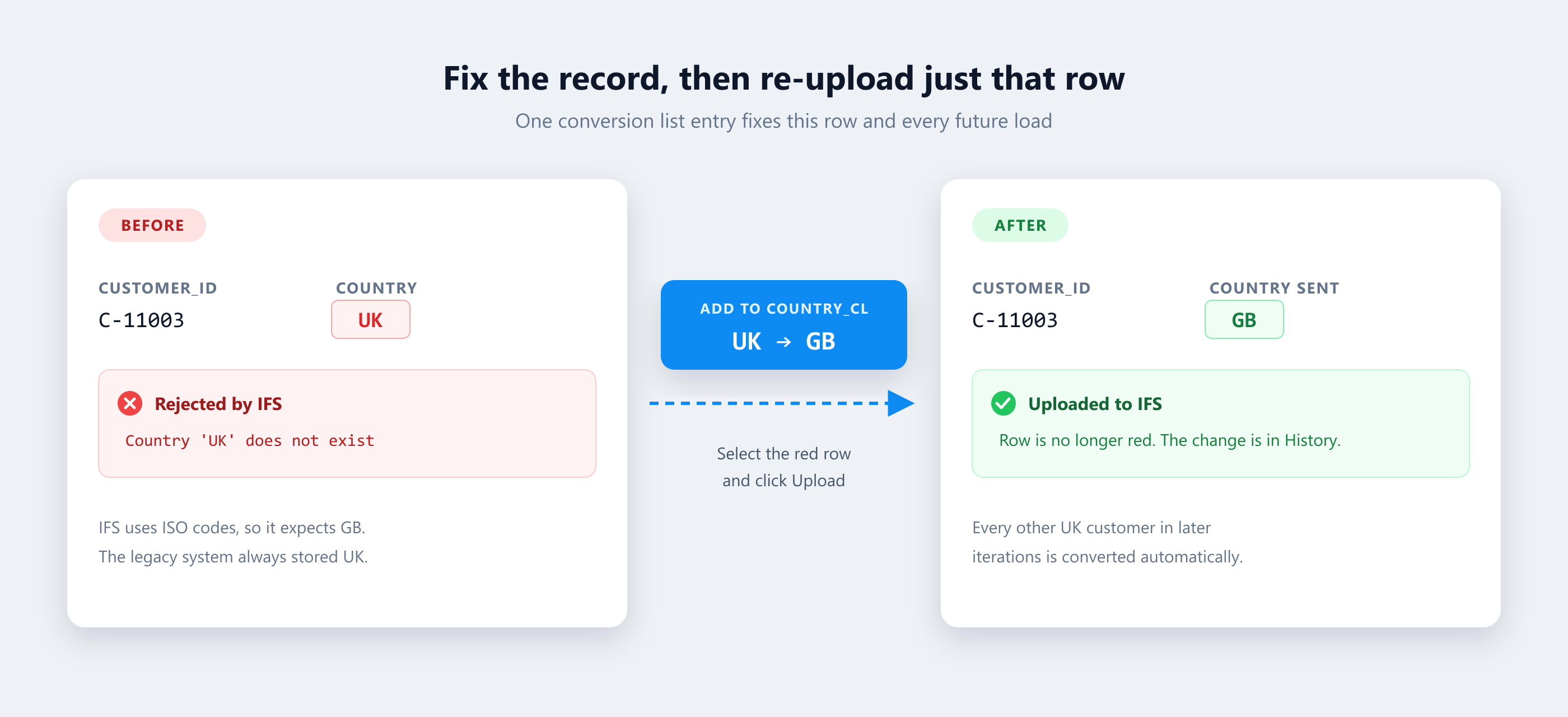
One Conversion List entry fixes this row and every future load.
Number 4 is the step that pays off most. Every failure in your first iteration becomes a check that protects the next iteration and go-live. By the final cutover, your checklist covers every problem this dataset has shown you.
Step 5: Confirm the data landed correctly
Getting a row into IFS doesn't prove it went in correctly. After the upload, run a Data Comparison. It reads the records back from IFS and compares them field by field with what you sent, including the converted values.
You can download the result as an Excel reconciliation report. This is usually what the business wants to see before signing off.
The full workflow
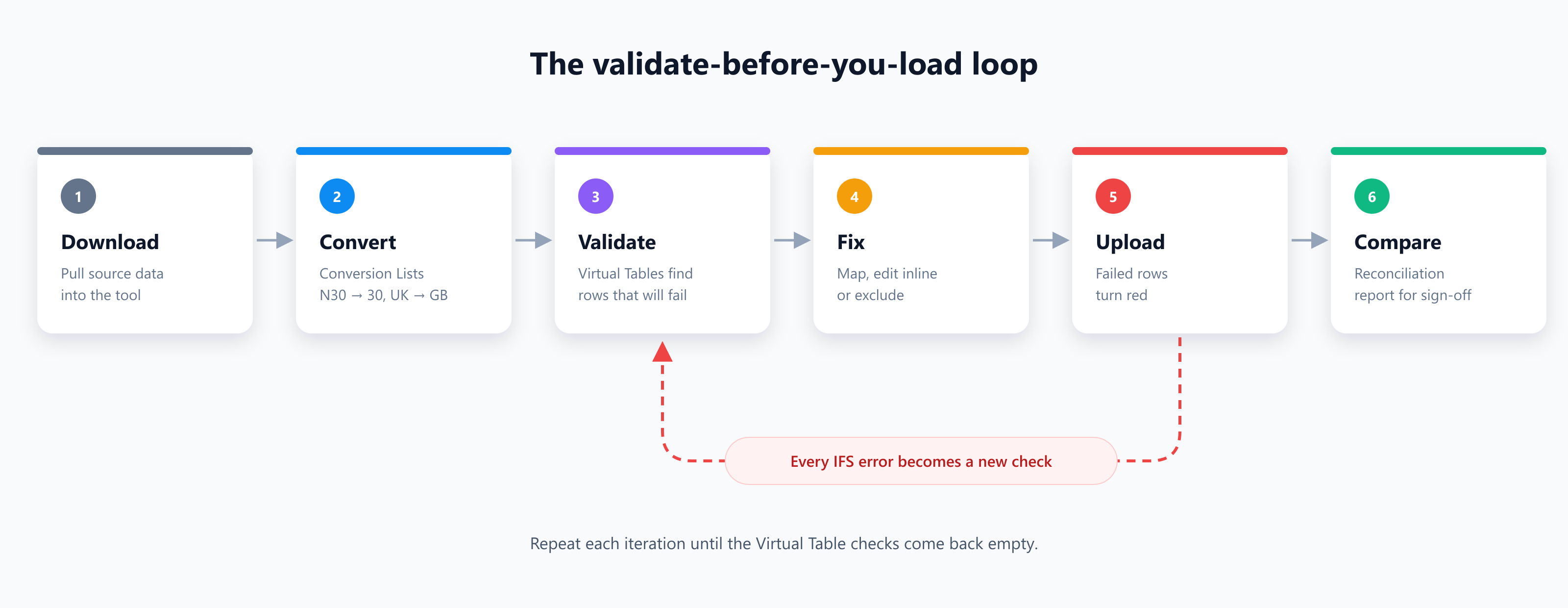
Every IFS error becomes a new check. Repeat each iteration until the Virtual Table checks come back empty.
Lessons we learned the hard way
- Check the converted value as well as the source value. A code can be in the Conversion List and still map to something IFS doesn't accept.
- Let the business own the Conversion Lists. Consultants can build them, but someone in finance should confirm that N30 really means 30. Export the list to Excel and get it signed off.
- Run the checks every iteration. Source data keeps changing right up to cutover. Last month's clean run tells you nothing about today's download.
- Don't fix the same problem twice. If you keep correcting the same value by hand, make it a Conversion List entry.
- Aim for empty. A check that "usually has a few rows" will eventually have a few thousand.
Wrapping up
Every migration has bad data. What you can control is when you find it. Catch it in a Virtual Table on Tuesday and it's a five-minute fix. Find it in an IFS error log during the cutover weekend and it's a very long night.
Conversion Lists translate what you already know. Virtual Tables show you what you don't. Red rows catch whatever gets past both.